
Bot Configuration & Management Guide
Welcome to the Claw Farm documentation. This guide will walk you through the complete process of configuring your OpenClaw AI assistant and managing it through our dashboard. Whether you're new to AI assistants or an experienced user, this guide has everything you need.
Bot Configuration
Setting up your AI assistant
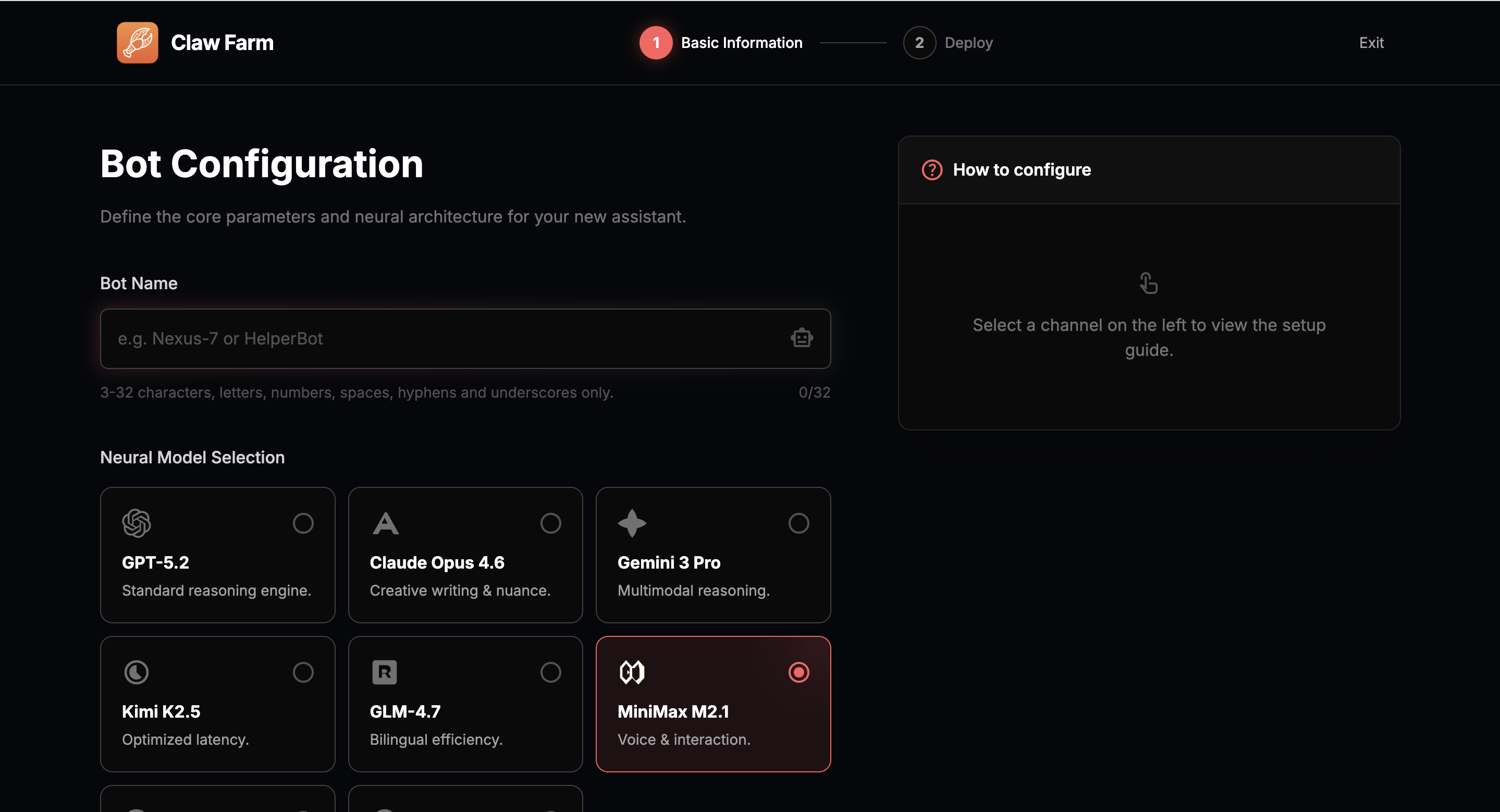
The bot configuration process takes place on the Onboarding page. Here, you'll define your bot's identity, choose its AI capabilities, and connect it to your preferred messaging platform. Follow these steps to get your AI assistant up and running.
Step 1: Navigate to the Onboarding Page
To start configuring your bot, you first need to access the onboarding page.
- 1.Click the "Get Started" button in the top-right corner of any page on Claw Farm, or
- 2.Go directly to /onboarding
Step 2: Enter Your Bot Name
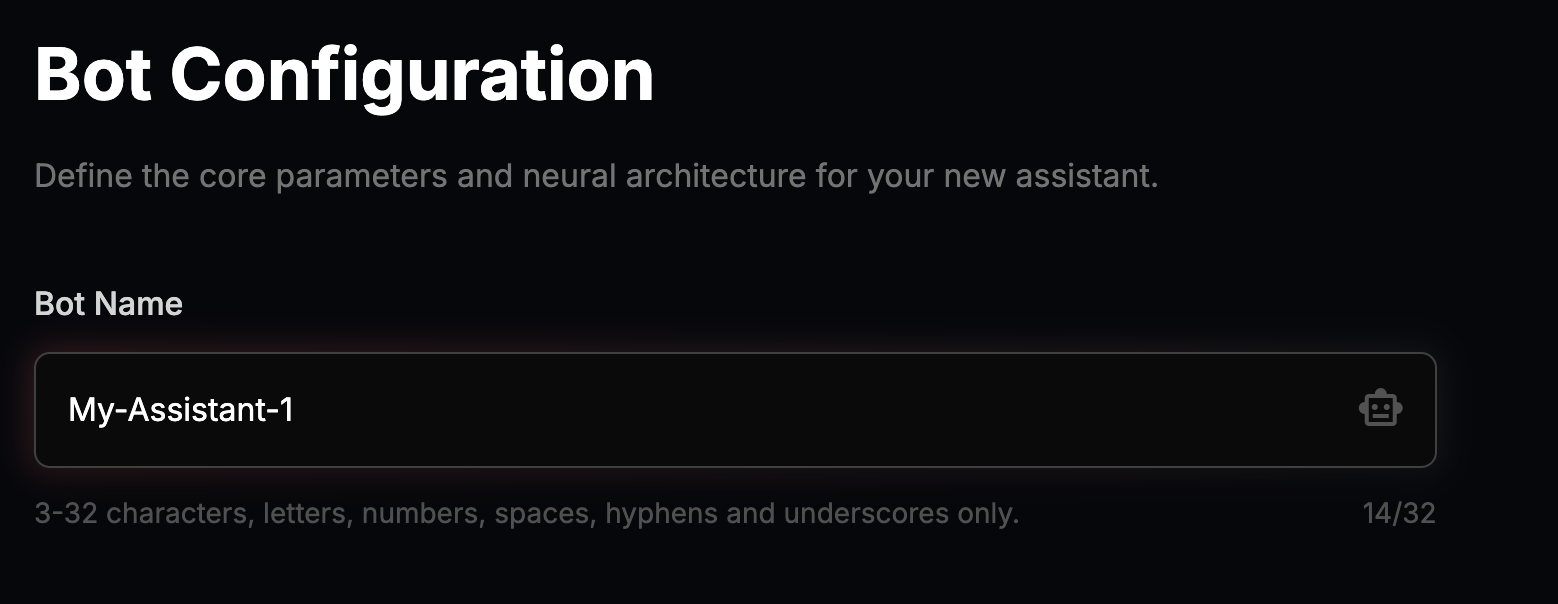
Give your AI assistant a unique name that helps you identify it in your dashboard.
- •Find the "Bot Name" input field on the left side of the onboarding page
- •Enter a name between 3-32 characters
- •Use letters, numbers, spaces, underscores, or hyphens only
- •Examples:
MyAssistant,Team-Bot-01
Step 3: Select an AI Model
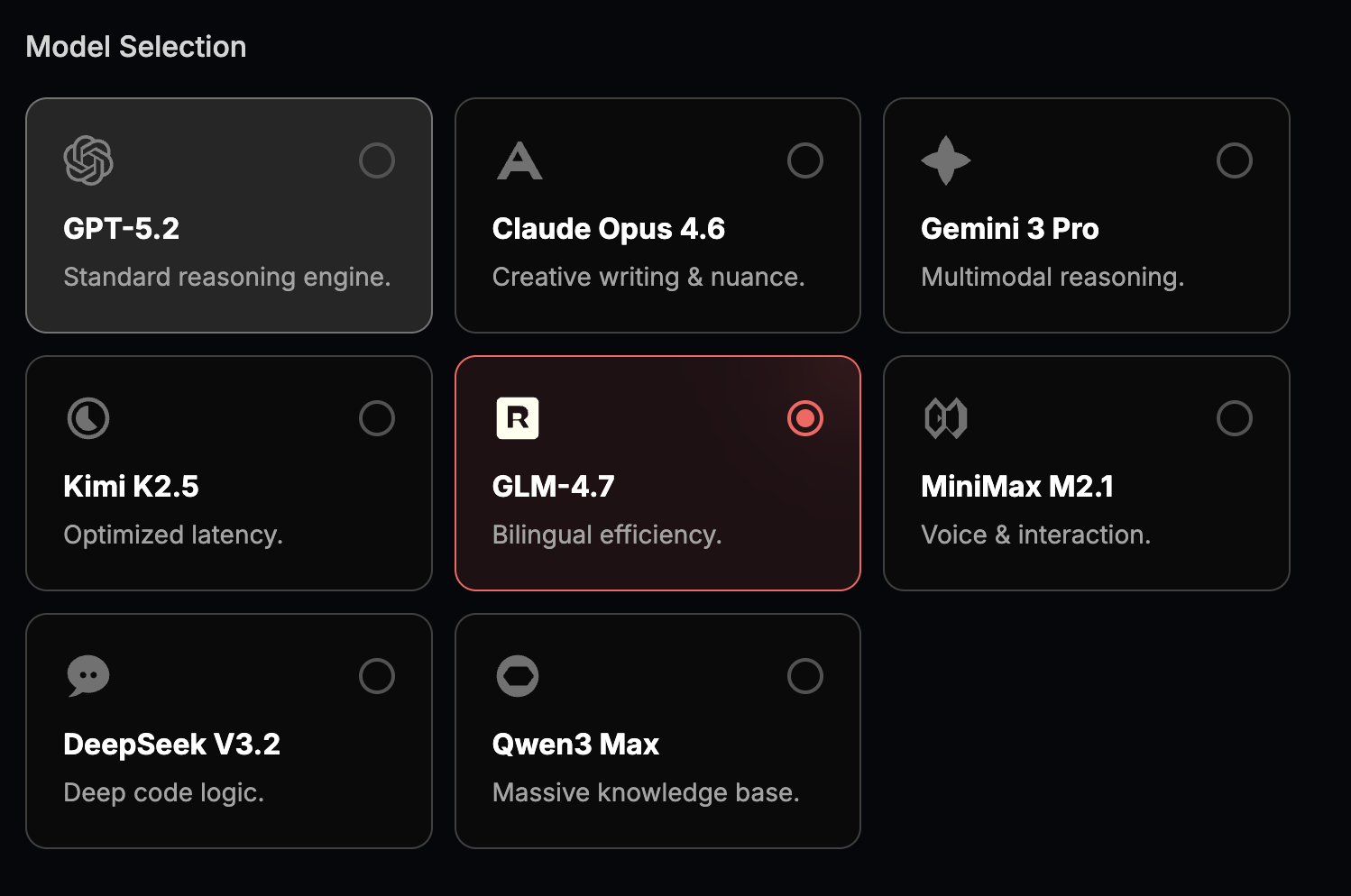
Choose the AI model that powers your assistant. Each model has different strengths and capabilities.
Tip: You can change the AI model later from your dashboard if needed.
Step 4: Choose Channel & Get Bot Token
Select the messaging platform where you want your AI assistant to be available. We support Telegram and Discord, each with its own setup process.
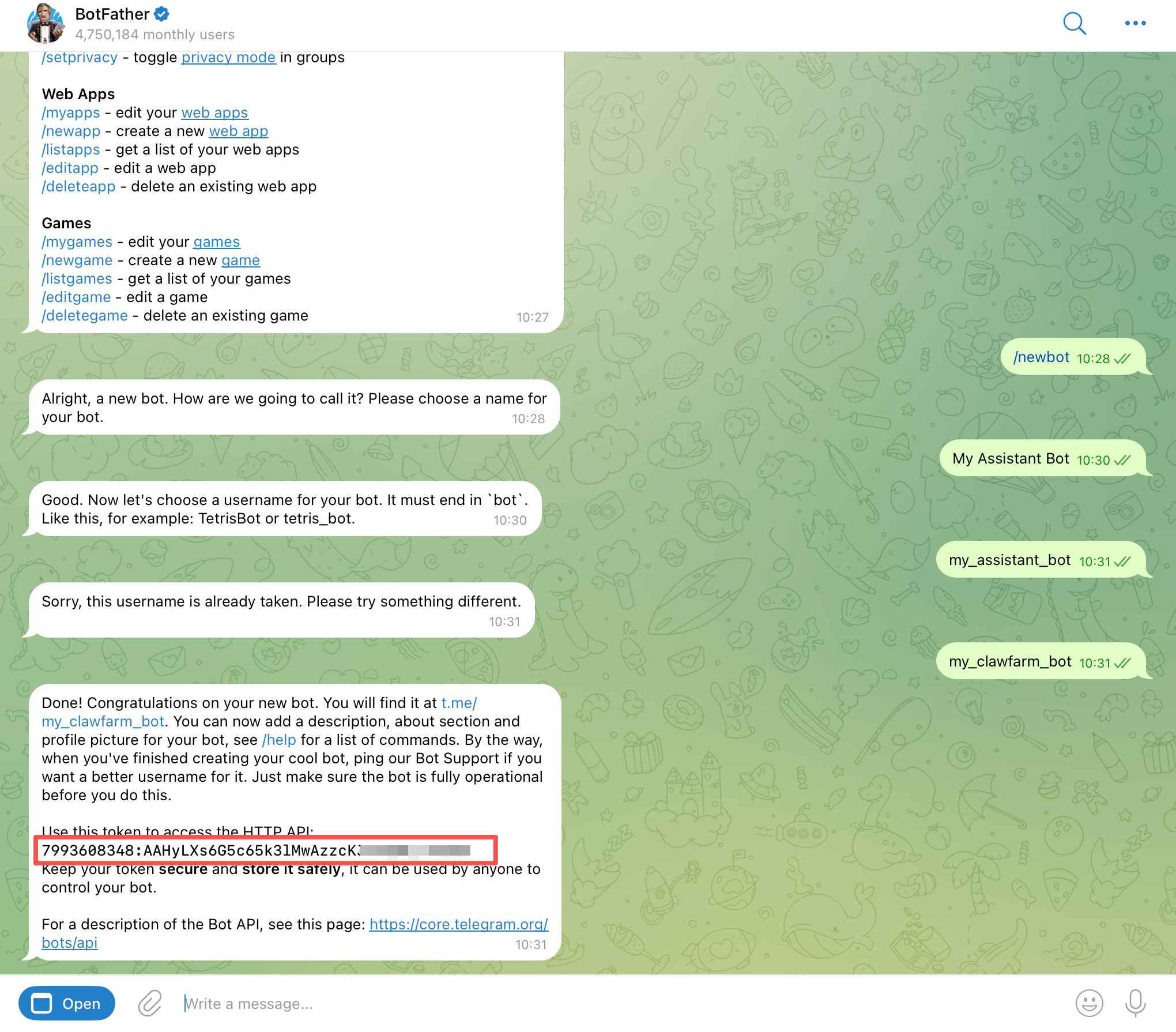
For Telegram Users
- 1.Select "Telegram" from the channel options
- 2.Open Telegram and search for @BotFather (the official bot with a blue checkmark)
- 3.Send the command
/newbotto BotFather - 4.Follow the prompts to set your bot's display name and username (must end with "bot")
- 5.Copy the Bot Token provided by BotFather (looks like:
123456789:ABCdefGHI...) - 6.Paste the token into the "Bot Token" field on the onboarding page
For Discord Users
- 1.Select "Discord" from the channel options
- 2.Go to discord.com/developers/applications
- 3.Click "New Application" and give it a name
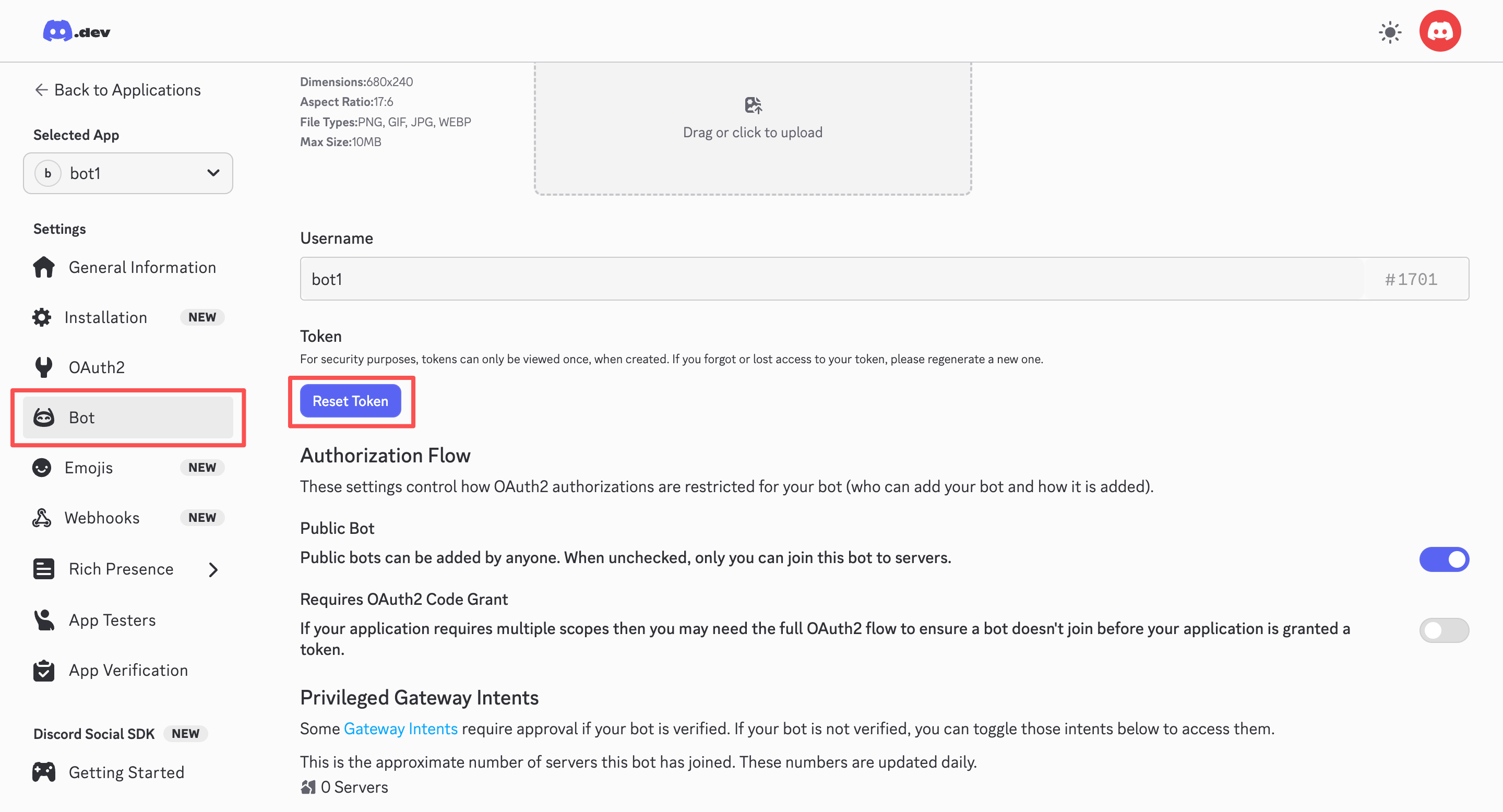
- 4.In the left sidebar, click "Bot" then "Add Bot"
- 5.Click "Reset Token" to reveal your bot token, then copy it
- 6.Important: Enable "Message Content Intent" in the Bot settings
- 7.Paste the token into the "Bot Token" field on the onboarding page
Need Help?
As you select a channel, a detailed step-by-step guide will appear on the right side of the onboarding page. Follow those instructions exactly to obtain your bot token.
Step 5: Deploy Your Bot
Once you've entered all the required information, you're ready to deploy your AI assistant.
- 1.Review your configuration (bot name, AI model, and channel)
- 2.Ensure your bot token is correctly pasted (no extra spaces)
- 3.Click the Deploy Now button
- 4.You'll be redirected to the Pricing page
- 5.Select a subscription plan that fits your needs
- 6.Complete the payment process
- 7.Your bot will be deployed and ready to use!

Congratulations!
After completing the payment, your AI assistant will be deployed to our cloud infrastructure. You can access it from your Dashboard.
Bot Management
Managing your deployed bots
After deploying your bot, you can manage it from the Dashboard. The dashboard provides a centralized view of all your bots and allows you to configure their settings.
Accessing the Dashboard
- 1.Log in to your Claw Farm account
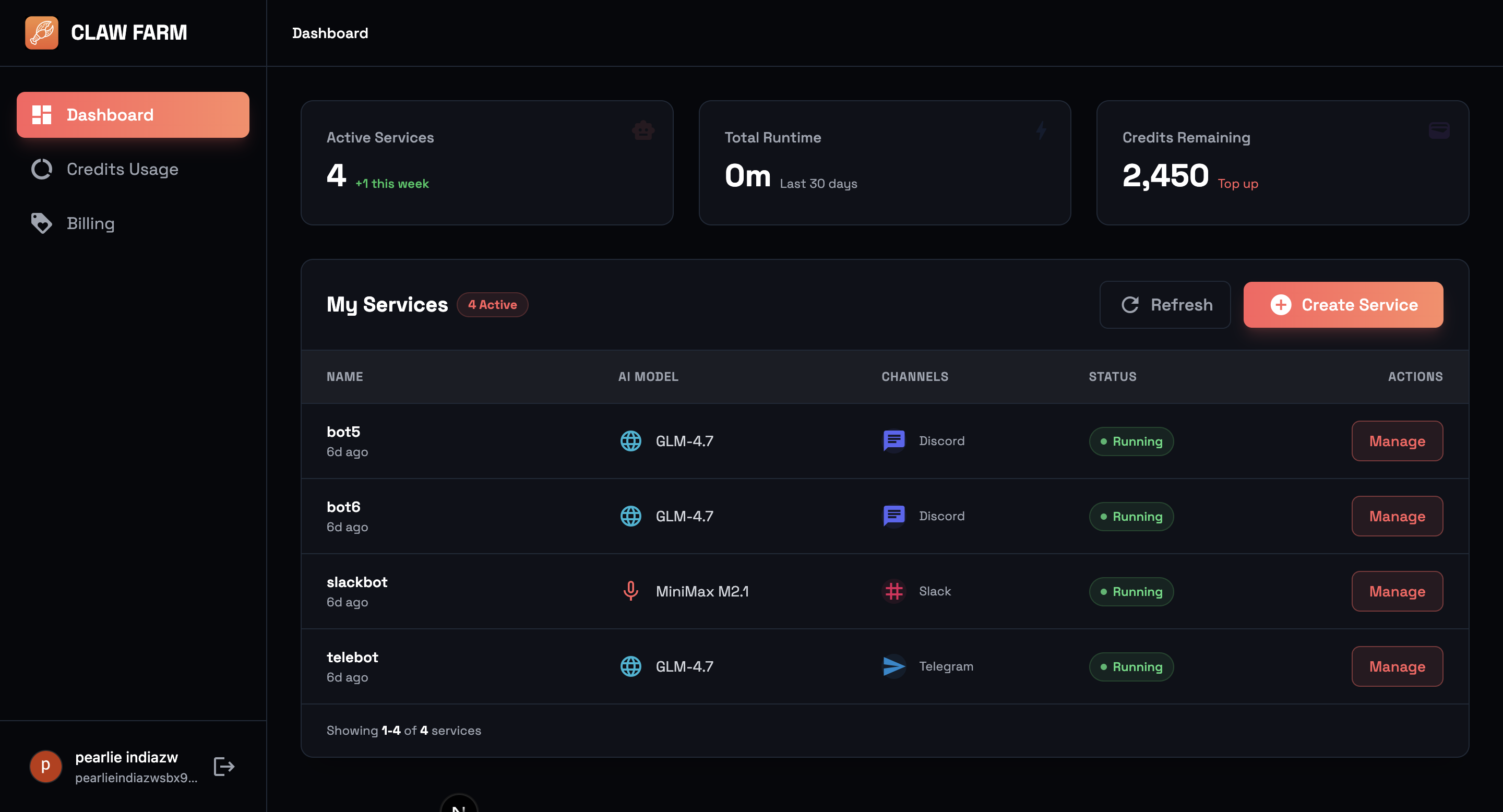
- 2.Click "Dashboard" in the navigation menu, or go directly to /dashboard
- 3.You'll see a list of all your deployed bots
Managing Bot Settings (Overview Tab)
Click the "Manage" button on any bot to access its details. The Overview tab allows you to modify your bot's basic settings.
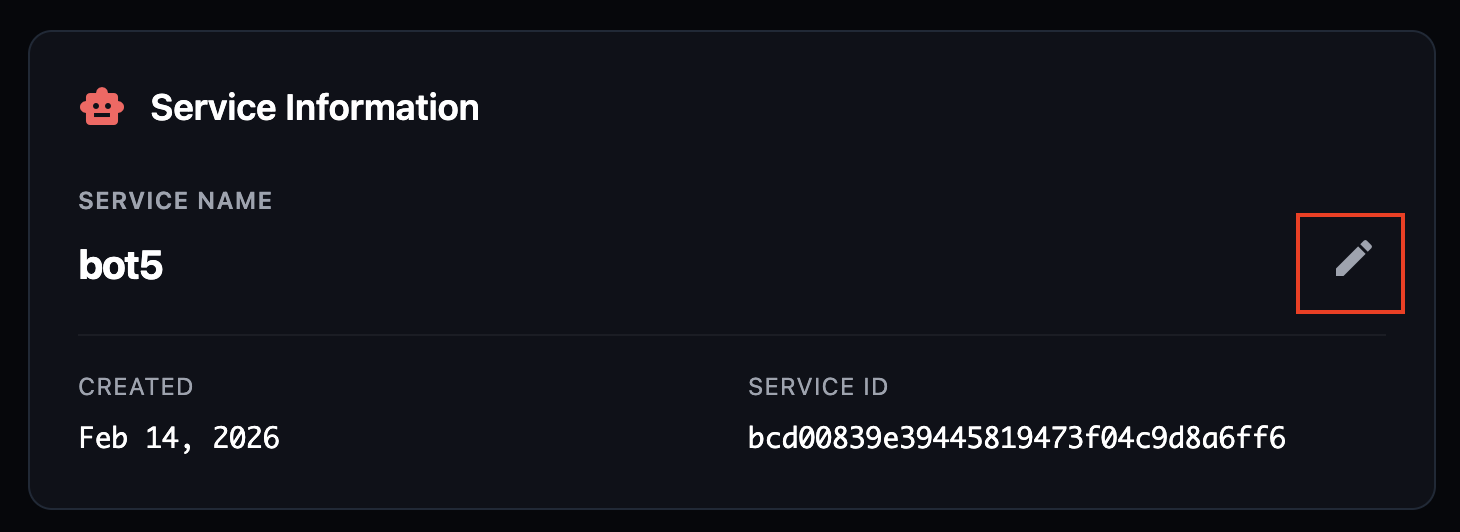
Changing Bot Name
- 1.In the Overview tab, click the "Edit Name" button
- 2.Enter a new name (max 64 characters)
- 3.Click "Save" to confirm
Changing AI Model
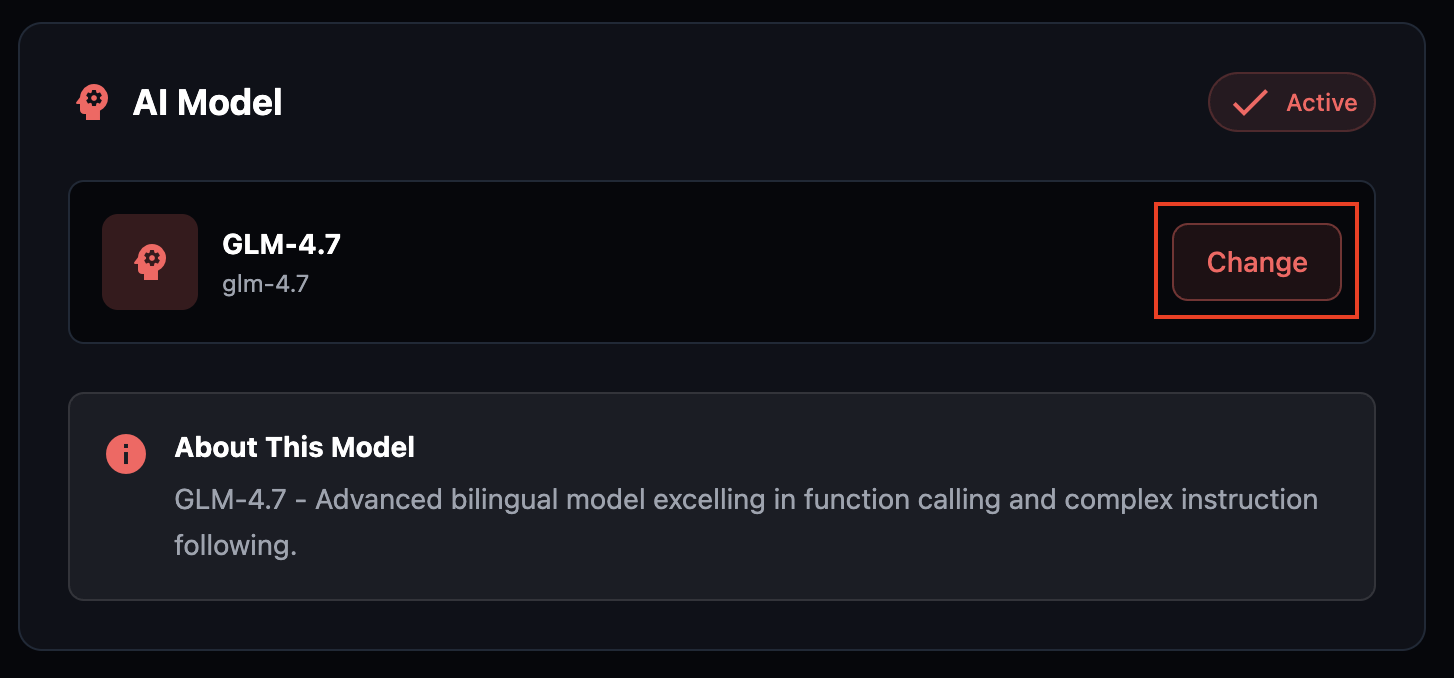
- 1.In the Overview tab, find the "AI Model" section
- 2.Click the "Change" button
- 3.Select a new AI model from the list
- 4.Click "Switch Model" to confirm
Service Restart Required
Changing the AI model will restart your service. This takes approximately 30-60 seconds, during which your bot will be temporarily unavailable.
Managing Channel Tokens (Channel Tab)
The Channel tab allows you to add, edit, or remove messaging channels for your bot. You can also update existing channel tokens if they've been rotated or expired.
View Connected Channels
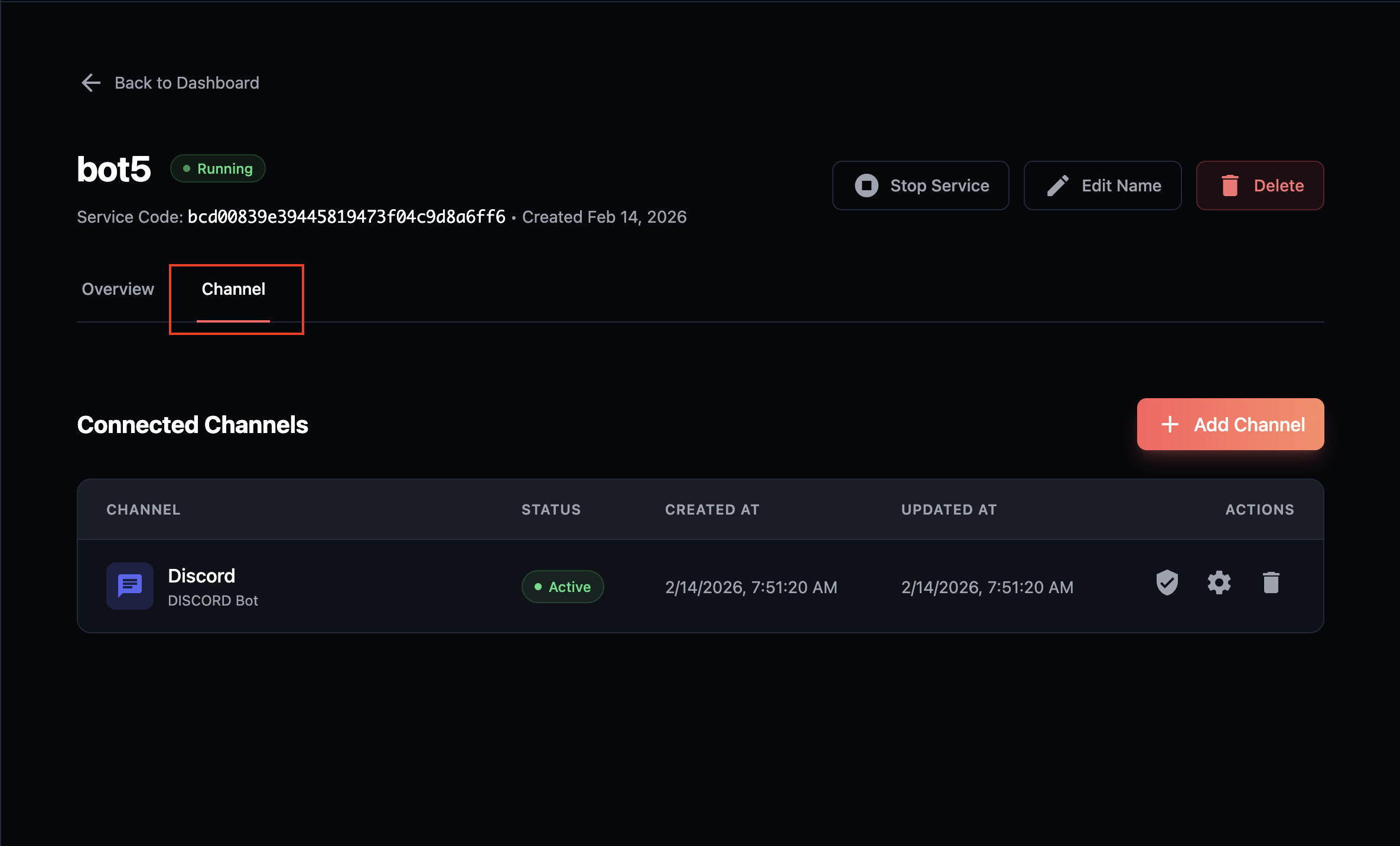
The Channel tab displays a table of all connected channels with their status and connection details.
- •Channel: The platform name (Telegram, Discord, Slack)
- •Status: Active or Inactive
- •Created/Updated: Timestamps for tracking
Adding a New Channel
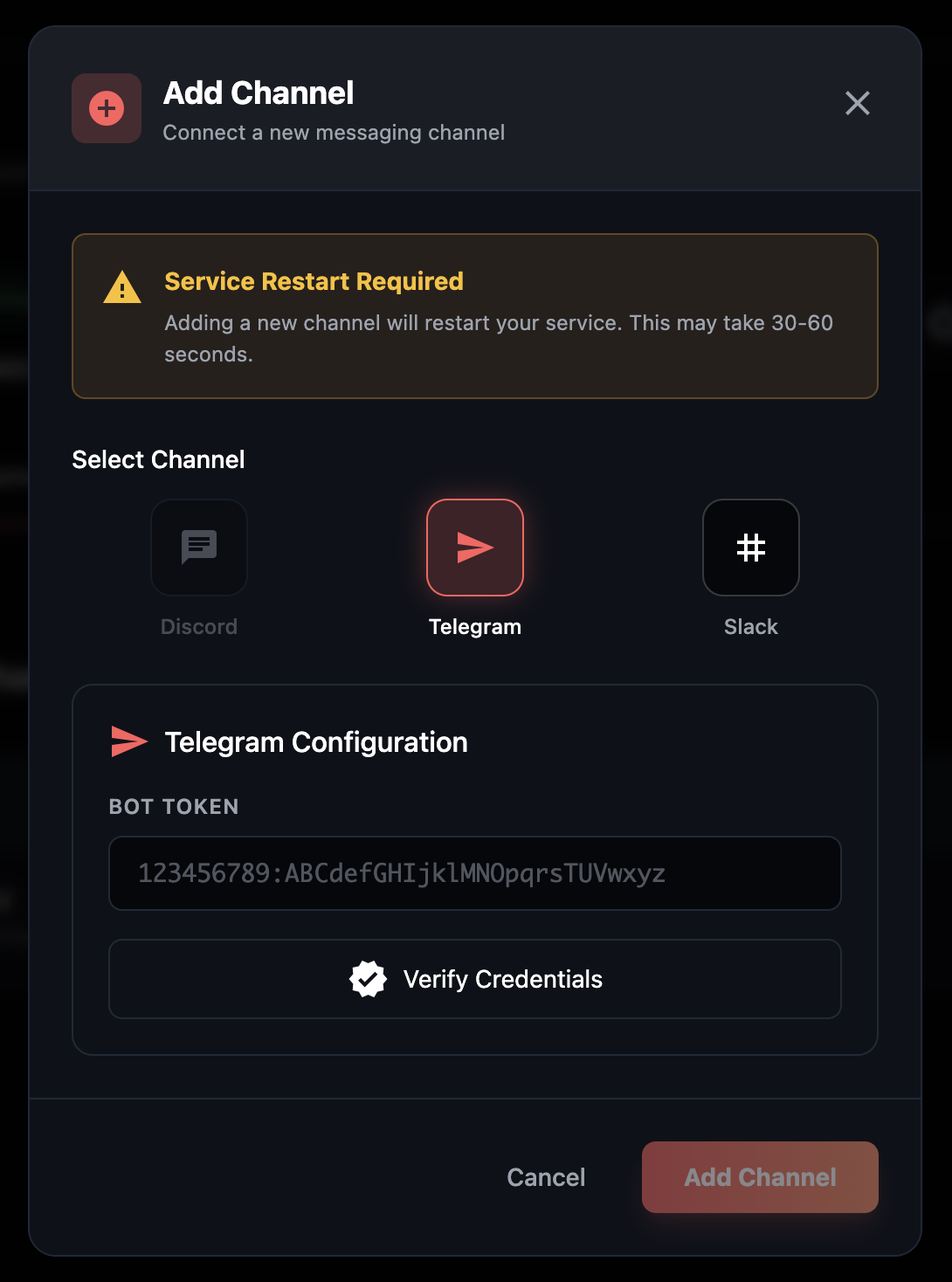
- 1.Click the "Add Channel" button
- 2.Select a channel type from the available options
- 3.Enter the bot token for that channel
- 4.Click "Verify Credentials" to validate
- 5.Click "Add Channel" to complete
Editing Channel Configuration
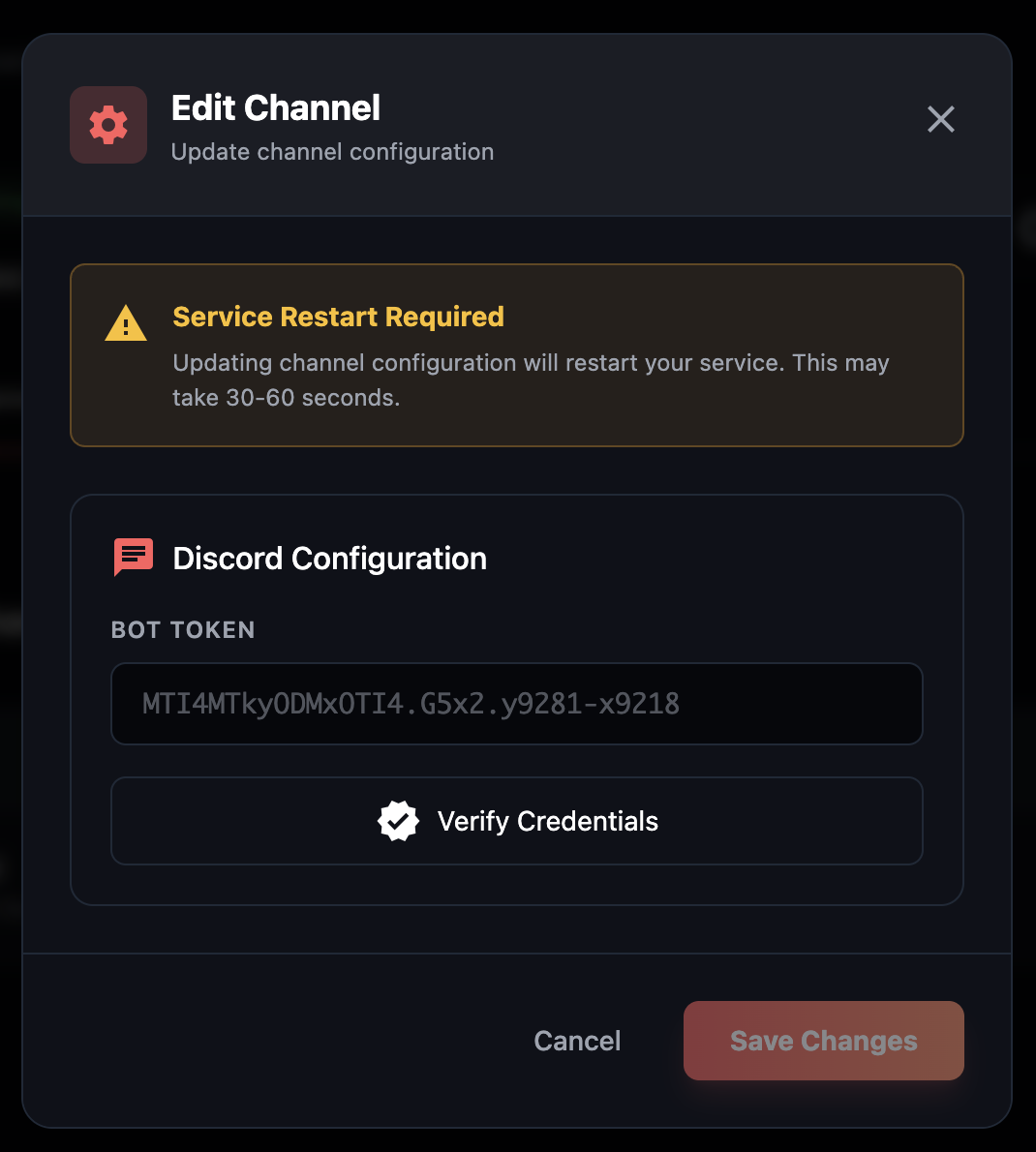
If you need to update a bot token (e.g., after rotating credentials):
- 1.Find the channel you want to edit in the list
- 2.Click the (Configure) button
- 3.Enter the new bot token
- 4.Verify and save the changes
Channel Changes Require Restart
Adding, editing, or removing a channel will restart your service. This process takes 30-60 seconds, and your bot will be temporarily unavailable during this time.
Ready to Deploy Your OpenClaw?
Get your personal AI assistant running with Claw Farm's guided OpenClaw setup. Simple, fast, and designed for ease of use.
Start OpenClaw Setup